
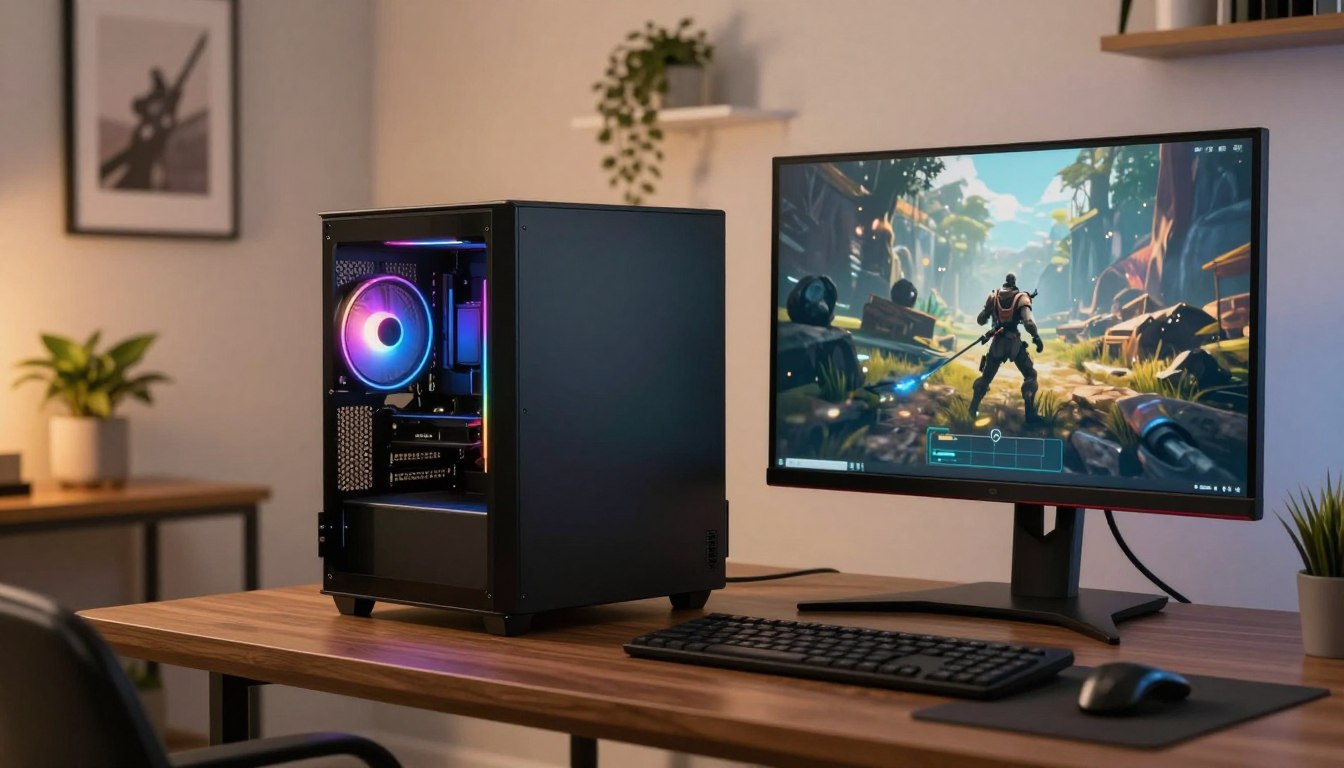

How Much Did You Spend on Your Gaming PC: A Complete Guide
A gaming budget can start near $1,200 for a basic tower and climb past $4,500 for a high-end one, before you add an operating system or peripherals. Your answer to “how much did you spend on your gaming PC?” depends on the games you play and the experience you want. The tower is the complete PC without a display or accessories. A complete setup can cost more because it may also need a monitor, keyboard, mouse, headset, desk, or chair.
Start with the resolution you want, the games you care about, and the accessories you already own. Those choices help you set a budget before a tempting graphics card or a low headline price skews your plans. Compare the cost of a complete, compatible system, not one component in isolation. That gives you a more useful estimate of the money you will need to get playing.
Frame rate is the number of images a game displays each second, usually expressed as frames per second or FPS. Your budget should reflect the kind of performance and display you want, rather than a single part’s specifications. A practical comparison includes the tower and anything else you still need to buy.
Key Takeaways
- Set your spending target around the games and resolution you want.
- Separate the tower price from the complete setup cost.
- Include RAM when comparing build estimates.
- Check current graphics card prices before using a parts list.
- Count accessories you already own before planning new purchases.
Start by deciding which games and display resolution matter most, then compare complete configurations rather than one tempting component price.
How Much Did You Spend on Your Gaming PC?
For a new tower, plan on roughly $1,180 at the budget end, $1,450-$2,190 in the mid-range, or $2,500-$4,700 for high-end gaming. Those are planning ranges, not guaranteed prices for a live shopping cart. The October 2026 estimates below include RAM, but exclude an operating system and peripherals.
RAM can add hundreds of dollars to a listed build, so compare totals that include the memory kit. Some estimates first list a PC without RAM, which can make a build look cheaper than it is.
A parts list is not the full tower total until you add RAM and confirm the graphics card’s price.
| Tier/build | GPU | RAM kit and RAM cost | Total | Target resolution |
|---|---|---|---|---|
| RX 7600 budget | Radeon RX 7600 | 16GB, $258 | $1,182 | 1080p |
| RTX 5060 Ti 8GB mid-range | GeForce RTX 5060 Ti 8GB | 16GB, $200 | $1,452 | 1080p-1440p |
| RTX 5060 Ti 16GB mid-range | GeForce RTX 5060 Ti 16GB | 32GB, $479 | $2,189 | 1440p |
| RX 9070 XT high-end | Radeon RX 9070 XT | 32GB, $369 | $2,505 | 1440p-4K |
| RTX 5080 high-end | GeForce RTX 5080 | 32GB, $495 | $4,695 | 4K |
The listed $1,182 RX 7600 build starts with a $924 PC before its $258 memory kit. The RTX 5060 Ti 8GB build is $1,252 before RAM, then $1,452 with its listed kit. These October 2026 figures illustrate how memory changes the price, rather than promising today’s checkout total.
Budget builds: the lowest listed cost is not the complete total
The least expensive build in the October 2026 list costs $924 before RAM and about $1,180 with its kit. A $1,000 budget covers that PC before memory, but not the listed kit. Tom’s Hardware’s October 2026 guide left out a $500 build because its guidance said that amount no longer covered a competent 1080p gaming PC at then-current prices.
Mid-range builds: check the memory cost
The RTX 5060 Ti 16GB configuration costs $1,710 before RAM and about $2,190 with its listed 32GB kit. Using the listed $200 16GB kit instead would bring its estimate to $1,910. That is a useful reminder to check the selected memory, not just the graphics card or base PC.
High-end builds: the GPU can move the total sharply
The listed graphics cards ranged from $339 for the RX 7600 to $1,649 for the RTX 5080. The RX 9070 XT build totals $2,505 in the estimate, but could cost about $250 more if the card costs no less than the $1,100 retailers reportedly charge. An April 2026 guide placed entry-level systems at $1,000-$1,200, mid-range at $1,200-$2,200, and high-end at $2,200-$4,500 and up. A $1,200-$2,000 plan suits a more capable tower, while high-end goals call for $2,500 or more.
Before treating a parts list as affordable, add the actual memory kit and confirm the graphics card’s current price.
What Does Each Budget Tier Let You Play?
The best budget tier is the one that can run your games at the resolution you actually plan to use. Resolution changes the workload: moving from 1080p to 1440p or 4K asks the GPU to render more pixels. Game settings and the GPU also affect performance, so a price alone cannot promise a specific experience.
1080p is a sensible target for budget-conscious gaming, while 1440p-4K generally needs more graphics performance. A balanced system can aim for 1080p-1440p, while 4K goals usually require a stronger graphics card. Consider the games you play and the settings you find acceptable.
A $500 budget may run Fortnite if you reuse parts, buy used hardware, or choose a processor with integrated graphics. It is not a dependable budget for a new, competent 1080p tower with a discrete graphics card. At that price, the available system and settings matter more than a promise attached to the game’s name.
A 1080p display can make a lower-cost GPU a sensible fit. A higher-resolution display can make the same GPU work harder, so you may need to adjust graphics settings or choose stronger hardware. That trade-off affects the gaming experience more than a label such as “budget” or “mid-range.”
Before settling on a tier, check these three things:
- The games you plan to play most often.
- The display resolution you want to use.
- Whether you already own a monitor and other accessories.
Two people with the same budget can need different systems. One may value a high frame rate at 1080p, while another prefers sharper graphics at 1440p. Your target settings help clarify which graphics card and overall system make sense.
A $1,000 parts budget can still come up short when the memory kit and other required items are outside that figure.
Which Components Drive a Gaming PC’s Price?
The graphics card usually takes the biggest share of a higher-performance gaming budget, while the CPU and supporting parts determine how well the whole system works together. Balance matters: a powerful GPU cannot make incompatible components fit, and a cheap supporting part can limit a build.
The GPU renders game graphics, while the CPU handles game logic and other system tasks. Illustrative planning allowances are $250-$459 for a CPU and $259-$999+ for a GPU. These are rough figures, not current quotes or recommendations for a specific seller.
The CPU and graphics card take the largest performance decisions
The GPU often has the greatest effect on graphics performance, especially at higher resolution. Graphics cards also vary widely in price and capability, so match one to your games and display. The CPU matters for game logic, background tasks, and keeping the rest of the system responsive.
The motherboard must support the CPU and memory type, and provide the expansion slots and connections you need. An illustrative motherboard allowance is $105-$425. Check its socket, memory support, storage slots, and other features against the exact parts in your build.
Memory and storage affect capacity and responsiveness
RAM holds data the system needs while games and applications run. Storage determines how many games and files fit locally, and an SSD can help games and the operating system load promptly. Choose enough SSD capacity for the games you expect to keep installed instead of assuming a small drive will suit you.
A rough SSD allowance is not one fixed figure because capacity and model affect the cost. Check the motherboard’s supported SSD interface and slot before choosing a drive. A large drive cannot help if it does not match the connection available in the system.
The supporting parts still need to fit the build
Illustrative allowances include $59-$150 for a case, $115-$255 for a PSU, and $49-$159+ for a CPU cooler. Check case dimensions and airflow, along with the PSU’s wattage and connectors. The cooler must fit the CPU and case, and handle the processor’s cooling needs.
An 80 PLUS rating measures power-supply efficiency. Its tiers include Standard, Bronze, Silver, Gold, Platinum, Titanium, and Ruby, so Platinum is not the highest. A higher tier does not automatically mean better gaming performance or overall PSU quality. Compare the unit’s specifications and protections, not just its badge.
Before choosing a PSU, match its wattage, connectors, and form factor to the exact CPU, GPU, and case.
How Much RAM Does Gaming Need in 2026?
For most new gaming builds, 16GB is the minimum sensible capacity and 32GB is the more comfortable choice. Extra headroom helps when you run a game alongside a browser, music, or streaming software. More RAM does not automatically raise frame rates when capacity is not the system’s limit.
In 2026, 16GB can suit focused play, while 32GB gives most gamers more room for multitasking. A game can use 12-14GB on its own, and Windows with background processes can use 3-5GB at idle. Those demands can leave a 16GB system with little room for other apps.

16GB can work for focused play
A focused 16GB setup can handle most current 1080p and 1440p games. Browser tabs, music, and OBS can bring total memory use to 13-15GB, which may leave little breathing room. If you close extra applications while playing, 16GB can still be a practical starting point.
Memory capacity matters most when your current workload uses more than the system can comfortably hold. In that situation, adding RAM can reduce slowdowns. If capacity is not a bottleneck, a larger kit alone is not a reliable way to improve FPS.
32GB leaves more room for multitasking
Choose 32GB if you want to stream with OBS, keep other applications open, or give your PC more room over time. It is a starting point for streamers running OBS alongside other software. A matched 2x16GB DDR5-6000 kit in dual-channel mode is a recommended 2026 choice for most gamers.
Matched modules work together in a dual-channel configuration when installed in the correct motherboard slots. Confirm the board’s supported memory generation, capacity, speed, and slot arrangement. DDR5 delivered 1-3% higher average FPS than well-tuned DDR4 in most titles during extended testing, a small difference rather than a reason to replace a compatible system.
Choose memory for your workload and platform, not just a larger number on the box. A 32GB kit can make everyday multitasking feel less constrained, but it does not turn an entry-level GPU into a faster graphics card.
Check the motherboard’s supported memory type and configuration before buying a kit.
Is a Prebuilt or Custom-Built PC Better for Your Budget?
A custom build gives you direct control over each component, while a prebuilt arrives assembled and ready to set up. The better fit depends on whether you value part-by-part choice or a simpler start. Both options can suit a gaming budget if you compare the actual specifications.
Compare the exact components and warranty terms before paying, not just the model name. These examples show how configurations can differ; they do not establish which system offers the best value.
| PC model | CPU | GPU | RAM | Storage plus PSU |
|---|---|---|---|---|
| MSI Codex R2 | Intel Core i5-14400F | GeForce RTX 4060 8GB | 16GB (2×8) DDR5 | 1TB M.2 NVMe SSD, 650W Gold |
| NOVATECH Phantom 2.0 | Intel Xeon i7 | GeForce RTX 3050 6GB | 16GB (2×8) DDR4-2666MHz | 512GB M.2 NVMe SSD, 550W Bronze |
| CyberPowerPC Gamer Xtreme | Intel Core i5-13400F | GeForce RTX 4060 8GB | 16GB (2×8) DDR5 | 1TB PCIe Gen4 SSD, 600W |
Custom builds offer more control over parts
Building a PC lets you select each part and decide where the money goes. You can choose a particular GPU, storage size, case, or cooling solution rather than accepting a preset configuration. That control can help you avoid paying for features your games do not need.
Assembly also takes time and careful work. You need to check compatibility, install the parts, connect cables, and troubleshoot if the PC does not start. For some buyers, that effort is worthwhile; for others, a ready-built system is easier to manage.
Prebuilt systems trade some choice for convenience
A prebuilt arrives assembled, which can save effort and make the first setup simpler. The listed examples show why you should inspect memory generation, storage capacity, GPU model, and PSU details. Similar-sounding CPU names do not tell you the whole story about a system’s gaming performance.
Read the warranty terms and confirm the exact component model in the configuration you will receive. A listed part name may not settle every detail, such as the specific SSD or PSU model. The table helps you compare configurations, not select a winner without a price and warranty comparison.
Compare the exact GPU, memory layout, storage, and PSU rather than judging a system by its CPU name alone.
What Does a Complete Gaming Setup Cost?
A complete setup costs more than the tower, and the display is often the biggest extra purchase. Count every item you need to start playing, including controls and audio. In October 2026, estimated setup totals ranged from about $1,543 for a budget system to $6,671 for a high-end setup.
The tower estimate does not include the monitor, keyboard, mouse, or headset. The table includes those items, but leaves out a desk and chair. The figures are dated estimates, not guaranteed current checkout prices.
| Setup tier | Included items | October 2026 complete setup estimate |
|---|---|---|
| Budget | PC, 1080p monitor, keyboard, mouse, headset | $1,543-$1,645 |
| Mid-range | PC, monitor, keyboard, mouse, headset | $2,052-$2,989 |
| High-end | PC, monitor, keyboard, mouse, headset | $3,455-$6,671 |
Budget for a monitor that suits the tower
A December 2025 roundup placed 1080p monitors around $200-$250, 1440p models around $300-$350, and 4K or OLED screens around $500-$1,300. Treat those figures as a price floor, then check current listings. A display should suit the tower’s graphics performance as well as your preferred resolution.
A 4K monitor may not make sense if your system cannot deliver the performance you want at that resolution. A more affordable display can leave more room for the tower or other equipment. Consider refresh rate and screen size alongside resolution when comparing models.
Price keyboard, mouse, and headset together
An August 11, 2026 roundup found a keyboard, wireless mouse, and wireless headset together at a US retailer for about $161 at deal prices or $213 at list prices. October setup estimates allowed $300-$450 for mid-range peripherals and $450-$680 for high-end ones. These are dated examples, not promises of current deals.
Think about comfort, connection type, and the features you will use. A bundled set can cover the basics, while separate items let you choose each one. Check the keyboard layout and mouse size before buying, since small fit issues can matter during long gaming sessions.
Allow for a desk and chair if you need them
A 60 x 30 inch desk top, about 152 x 76 cm, can fit a large monitor or two, plus a keyboard, mouse, and speakers. Desky’s October 2026 Single Sit Stand Gaming Desk cost $449-$699 with a 3-year warranty. The Alpha Dual Sit Stand Gaming Desk cost $689-$869 with a 10-year warranty and a 23.6-49.2 inch height range.
Desky’s Sigma L-Shape Gaming Desk cost $1,049-$1,149 with a 10-year warranty in October 2026. Its Vanguard Gaming Chair cost $579.90-$619 with a 6-year warranty. These are specific product examples, not typical desk or chair prices.
If you already own a monitor, keyboard, mouse, or headset, subtract only the items you will not need to buy.
What Extra Costs Belong in the Real Total?
A parts subtotal is not the amount due if tax, shipping, or software still needs to be added. Separate checkout costs from expenses that continue after purchase. October 2026 setup estimates excluded sales tax, shipping, and Windows.
Check whether the PC includes Windows before adding the cost of a license. One PC maker allowed $95-$215 for an operating system license. A prebuilt may include Windows, while a DIY buyer should check whether an existing license can be used under its terms.
Windows 11, paid games, subscriptions, and optional applications can add to the total. Steam is a game platform with paid games and sales, so you can compare prices and watch for discounts. OBS Studio is free and open source if you want streaming software.
Do not count an operating system twice if it already comes with the system or an eligible license. Check what is included in a prebuilt listing, and read the terms for any license you plan to reuse. Optional apps should stay optional in your budget unless you know you need them.
Sales tax and shipping can change the amount due at checkout. Their totals depend on the purchase and location, so include them when comparing final prices. A parts list that fits the budget before checkout may not fit after those charges.
Ongoing costs can include electricity, dust cleaning, thermal paste, worn fans, and replacement parts. Power use depends on the system and how long you run it, so one electricity estimate will not fit every household. Regular dust removal and sensible airflow can help keep the PC operating well.
Plan for small maintenance needs without assuming every component will need replacement soon. Fan wear and replacement timing depend on use and the part itself. Keep your case clear of dust and pay attention to unusual noise or rising temperatures.
Check whether Windows is included and add your state and local sales tax before comparing final totals.
How Can You Save Money Without Hurting Performance?
The safest way to spend less is to cut features you do not need before compromising on a component your games rely on. Protect the performance target first, then look for savings in the rest of the build. The GPU matters most for many gaming goals, but a low price can hide a poor fit.
A cheap part is not a saving if it creates a compatibility problem or limits the system. The CPU, PSU, cooling, storage, and case all affect whether a graphics card can work well in the build.

Use this four-step approach to save money without losing sight of the games you want to play:
- Compare current prices across compatible parts before choosing a configuration.
- Consider used or refurbished hardware when it has a clear return policy.
- Reuse suitable parts you already own, such as a monitor or storage drive.
- Buy in phases with a planned upgrade path rather than replacing everything at once.
Compare deals and carefully chosen used parts
Compare the same component model across listings so you can see whether a price is genuinely lower. Check the seller’s return policy and the exact model number. A refurbished item may have different terms from a used item, so read the conditions before spending.
Used hardware can stretch a budget, but condition matters. Ask what is included and look for clear details about wear or damage. Avoid making a decision from a broad product name when the exact model can affect compatibility and performance.
Spend in phases and prioritize the parts that matter
Reusing a suitable display, keyboard, or case can leave more money for the GPU. If you buy in phases, make sure your first purchase forms a usable system and your later upgrade fits it. A planned path is more reliable than buying parts with no shared platform or purpose.
Do not save money by choosing a PSU without the connectors and wattage your GPU needs. A poorly matched cooler or cramped case can also create trouble. Storage capacity and motherboard features deserve a check, even when the GPU is your main gaming priority.
Keep a written total as you compare options, including any parts you still need. A lower headline price can disappear once shipping or an extra component is added. A good deal should preserve the performance and compatibility your games require.
Before buying used hardware, confirm its exact model, condition, return option, and fit with the rest of the build.
How Do You Check Compatibility and Price a Build?
A build is only affordable when every required, compatible part fits inside the budget. Price the whole tower, not just the CPU and GPU. A complete tower needs eight core categories: CPU, motherboard, GPU, RAM, SSD or other storage, PSU, case, and cooling.
A sensible $1,000 target is a 1080p-focused, GPU-first configuration. Price a compatible CPU and motherboard, then add memory, storage, power, case, and cooling in one cart. Do not treat a partial list as a complete build.
Compatibility errors can make even a low-priced part unusable. The Ryzen 7 7800X3D needs an AM5 motherboard and DDR5 memory. The MSI B550-A PRO is an AM4 DDR4 board, so it cannot pair with that CPU or DDR5.
Match the processor, motherboard, and memory
Intel Core Ultra desktop Series 2 processors use LGA1851 and compatible Intel 800-series desktop chipsets. The ROG Strix Z790-E Gaming WiFi uses LGA1700, so it does not support those processors. Check socket and chipset information for the exact models you are considering.
Use this checklist before ordering:
- Confirm the CPU socket and BIOS support on the motherboard.
- Match the RAM generation to the board’s supported memory type.
- Check GPU power connectors and clearance inside the case.
- Match PSU wattage and form factor to the GPU and case.
- Confirm the SSD interface and an available motherboard slot.
- Check the cooler’s mounting support and clearance.
Check the complete cart before ordering
Put all eight core categories into the cart and check each model’s specifications. Make sure the cooler fits the CPU and case, and that the GPU fits the case with its power connectors attached. A part can be listed as compatible but still be a poor physical fit.
Prices change across models and listings, so compare the exact part numbers rather than relying on a product family name. Avoid a fixed parts list without checking current support information. A small change in motherboard or CPU can affect memory compatibility and the upgrade options available later.
Recheck the full cart, including delivery and tax, before treating a parts list as a $1,000 build.
How Long Can a Gaming PC Stay Useful, and What Should You Upgrade?
A $1,000 gaming PC can remain useful for several years, but the settings you expect matter as much as the parts you start with. Useful means suitable for your games and preferences, not running every new release at maximum quality. A general rule of thumb is about 3-5 years of strong gaming performance.
Newer games, resolution, and graphics settings affect when an upgrade becomes worthwhile. A system may keep running games after its strongest years, but you could need lower settings or accept a different experience.
Judge longevity by the games and settings you want
Think about longevity as a match between your PC and the games you want to play. A system that meets your needs at 1080p may not satisfy you at 4K. Your expectations can shift as games become more demanding or your preferred settings change.
For a $1,000 PC, the 3-5 year rule is a guide, not a guarantee. The system may need an upgrade sooner if you want high settings in newer games. It may stay useful longer if you play lighter titles or accept adjustments to resolution and graphics quality.
Upgrade the bottleneck instead of replacing everything
Replacing a GPU can extend a system’s useful life without replacing every component. Before choosing a new card, check that the PSU can supply its power and connectors. The case must fit it, and the motherboard and CPU must remain compatible with the upgrade.
Sometimes another component is the bottleneck, so a GPU swap will not solve the problem you notice. Look for the part that limits your preferred games and settings. A targeted change can preserve useful hardware, but only if the rest of the system supports it.
Before buying an upgrade, identify the actual performance bottleneck and verify that the rest of the system can support it.
Can Integrated Graphics Handle Gaming Without a Graphics Card?
Integrated graphics can be a practical way to start gaming on a tight budget, but only if the processor includes them. They can handle lighter play, older titles, and basic gaming at modest settings. Demanding modern games and higher resolutions usually favor a discrete graphics card.
A $500-$800 starter budget is a planning range, not a promise of a complete new system with a discrete GPU. The lower end may depend on reused or used parts, or a system using integrated graphics. Check current prices before building your budget around that amount.
Integrated graphics can suit lighter gaming needs
Integrated graphics are built into some processors and can display games without a separate graphics card. They can be useful for lighter games, older titles, or basic play when modest quality settings are acceptable. Performance depends on the exact CPU and the game.
Not every CPU has usable integrated graphics. If a processor lacks them and the PC has no discrete card, it cannot provide a picture through the motherboard’s display connection. Check the exact processor rather than assuming all CPUs include this feature.
Know when a discrete card is necessary
A discrete GPU is a better fit for demanding modern games, higher resolutions, or more demanding graphics settings. Integrated graphics do not match a separate graphics card in those situations. Set realistic expectations before buying a system without a dedicated card.
Check these three points before choosing integrated graphics:
- Confirm the exact CPU includes integrated graphics.
- Look up the requirements for the games you play.
- Set expectations for resolution and graphics quality.
Gaming without a graphics card can be a sensible starting point when your games are light and your budget is tight. Check whether the system leaves room for a later discrete card, including enough power and physical space. That can help you avoid buying a platform that blocks your next step.
Choose this route when modest settings meet your needs, and price a discrete-card upgrade before you commit to a platform.
Conclusion
A good gaming budget is the one that matches your games and includes every part you actually need. Start with the experience you want, then decide how much of your money belongs in the tower and how much belongs in the rest of the setup.
Compare complete, compatible totals rather than headline component prices. A graphics card’s price cannot tell you whether the memory, power supply, case, or display also fits your needs. Make sure the parts work together and that the budget includes everything you still have to buy.
Before pricing a build, write down the games you expect to play and your preferred resolution. Note which parts and accessories you already own. Decide whether your spending limit includes peripherals and software, or just the tower.
Then price a full configuration with the required parts, rather than stopping when the CPU and GPU seem affordable. Check the exact models, and include the costs that apply to your purchase. That gives you a clearer basis for deciding whether to buy, wait, or change your target.
Write down your target resolution and owned accessories, then price a complete compatible build before you place an order.
A gaming PC’s price makes sense only when it matches the experience you want. You do not need to buy the most expensive parts to play well, but you do need a system that suits your games and display.
Use your game list and resolution as the starting point. Compare complete, compatible configurations, including the equipment you still need. Make a short parts-and-accessories list, set your resolution target, and compare complete totals before buying.
FAQ
How much is a good PC to play games on?
A tower around $1,200-$2,000 can be a practical target for a capable 1080p or 1440p gaming experience. The best fit depends on the games you play and the resolution you want. A complete setup costs more if you still need a monitor, keyboard, mouse, headset, or other accessories, so separate those items from the tower budget.
Is 32 GB RAM overkill gaming?
No, 32GB is a comfortable choice for gaming with multitasking, streaming, or extra headroom. A focused gaming session can suit 16GB, especially when you keep other applications closed. If you use OBS, browser tabs, or music while playing, 32GB gives those programs more room. More capacity does not automatically increase frame rates when memory is not a bottleneck.
Can a $500 PC run Fortnite?
Yes, potentially, if you reuse parts, buy used hardware, or use a processor with integrated graphics. You may need modest settings, and the exact experience depends on the parts and system condition. A $500 budget is not a dependable price for a new tower with a discrete graphics card, so do not expect a specific frame rate or quality level from the price alone.
Is $1000 enough to build a gaming PC?
It can cover a parts budget in some configurations, but the total depends on what the budget includes. The October 2026 budget example cost $924 before RAM, and its listed 16GB kit added $258. That brought the estimate to $1,182 before an operating system or peripherals. Check the complete cart rather than assuming the base PC price is the final tower total.
Is a $2000 PC good for gaming?
Yes, a roughly $2,000 tower can be a strong 1440p gaming target, depending on its exact CPU and graphics card. A balanced system matters more than one expensive part paired with weak supporting hardware. A monitor, software, keyboard, mouse, and headset can be extra, so confirm whether your $2,000 limit covers the tower alone or the complete setup.
How long will a $1000 gaming PC last?
A general rule of thumb is about 3-5 years of strong gaming performance, though that is not a guarantee. Newer games, your display resolution, and the settings you expect all affect when the system needs an upgrade. A $1,000 PC may remain useful longer if you accept lower settings, while demanding games or higher resolution can make an upgrade worthwhile sooner.
Is $700 enough for a gaming PC?
It can work if you reuse suitable parts, buy used components, or choose a CPU with integrated graphics. It is not a dependable budget for a complete new system with a discrete GPU. Check the cost of every required part before committing, and set expectations around lighter games or modest settings if the budget does not stretch to a dedicated graphics card.
Is it bad to leave a gaming PC on 24/7?
It is generally possible to leave a gaming PC on continuously if it has suitable cooling, but it uses electricity and adds operating hours. Use sleep mode or shut the PC down when continuous operation is unnecessary. Keep the case clear of dust and make sure fans can move air. If you run a demanding workload for long periods, pay attention to temperatures and airflow.

 By
By